
Organizer
Organizer — task planner, checklists and reminders
How to use Organizer: pages, four columns, day timeline, notes, subtasks, e-mail/Telegram reminders and sharing plus task assignment.
Updated: 12 Nov 2026
What is Organizer?
Organizer is a task planner inside the Simplevent panel. It replaces separate apps like Google Tasks or Notion — pages, checklists and reminders sit next to your reservation calendar.
Open it from the sidebar: Organizer (or directly here).
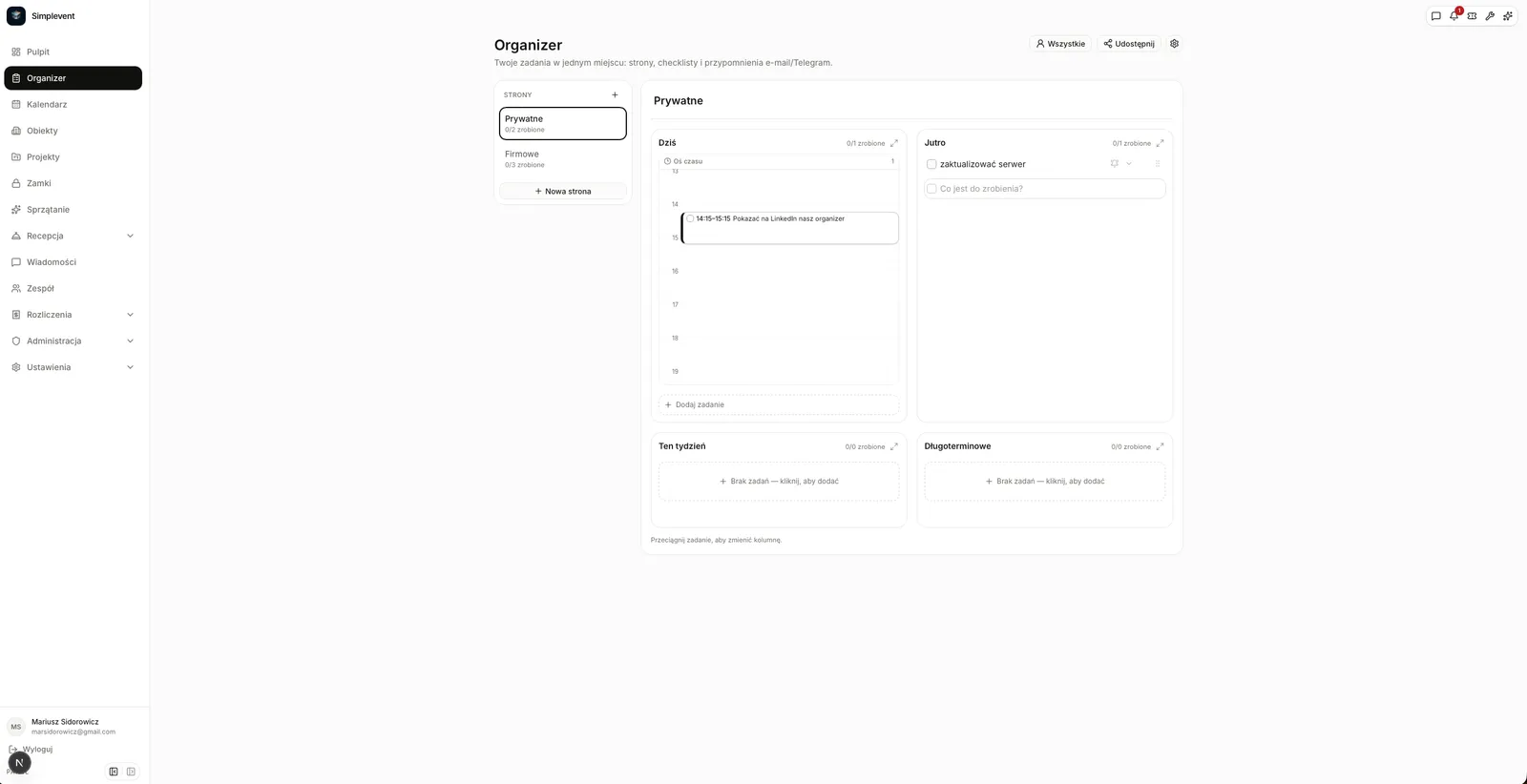
Pages and columns
Every page has a title and four columns: - Today, - Tomorrow, - This week, - Long term.
Create a page with New page. In Tomorrow, This week and Long term the Add task field is at the top of the list — click and type right away.
Drag tasks between columns. The expand icon in a column header opens that column at full width (the other columns become tabs).
A new day — automatic rollover
Tasks from the Tomorrow column automatically move to Today when a new day starts (Europe/Warsaw time). The rollover runs once per day, the first time Organizer is opened — regardless of device. Tasks left in Today stay there as overdue.
You do not have to move tasks by hand: what you planned for tomorrow is waiting in Today in the morning.
Timeline in the Today column
A task in Today can have a start time and duration. It then appears on the vertical timeline (e.g. 10:00, duration 2 h → block 10–12).
- Double-click a block to edit the task.
- Drag a block up or down to change the time (15-minute steps).
- Drag a block to another column to move the task.
- Tasks without a time stay below the timeline under No time.
Notes and subtasks
Every task can have a note (description, links, details) and subtasks with their own checkboxes. Subtasks appear indented under the task; you can edit, delete and reorder them with arrows.
Pasting a list: when you paste several lines into the "Add task" field, you can choose: - One task + subtasks — the whole list becomes a checklist under one task, - Separate tasks — each line becomes its own task in the column, - One task (keep line breaks) — a single text block with the original lines.
Useful for shopping lists, opening checklists and tasks sent by the owner.
E-mail and Telegram reminders
First configure the channels: Settings → Notifications (or the gear icon in Organizer). Enter an e-mail address and/or Telegram chat ID and tick send notifications for the channel.
Then click the alarm icon on a task, pick a date and time (one picker: calendar + time) and select the channels. The Simplevent worker sends the reminder even when the panel is closed.
Sharing and roles (PRO plan)
On the PRO plan you can share a page:
1. Open the page and click Share. 2. Enter the e-mail of a person who has a Simplevent account (if not, the invitation appears after they sign up with that address). 3. Choose permissions: - Edit — can change tasks, - View — can browse but cannot save. 4. The invited person accepts in Organizer (the You have page invitations banner).
The page owner can change roles, remove access and cancel invitations. Shared pages show a people icon in the list.
Assignments and "My tasks"
Assign a task to anyone with access to the page (owner or member). Pick the person in the expanded task or in the edit dialog. The assignee receives an e-mail notification (and Telegram if enabled).
The My tasks button in the header filters tasks assigned to you. All switches back to the full list.
Tips
- One page = one work area (e.g. "Cleaning", "Payments", "Shopping").
- Give today's important tasks a time — the timeline shows how long they really take.
- Use subtasks for steps that must happen in order.
- On FREE you get the planner and reminders; sharing and assignment unlock with PRO.